

Adding a TikTok video to your WordPress site is a fast way to bring more energy and attention to your content.
This guide covers all the ways to embed TikTok videos in WordPress, how to customize them, and what to do if things go wrong. Let’s get started!
1. Embedding a TikTok video with the block editor
With the WordPress block editor, embedding a TikTok video takes just a few minutes. Simply follow these steps:
- Go to TikTok and copy the video URL from your browser.
- Open the page you want to edit in your WordPress dashboard.
- In the WordPress editor, click the plus (+) sign to add a new block.
- Search for TikTok Embed in the block search bar and drag the block into place.
- Paste the copied URL into the block.
- Click Embed.

The video will load right in the editor. You can move the block or adjust alignment as needed.
2. Embedding a TikTok video with a URL
If you don’t want to use the TikTok block, you can paste the video link directly into a paragraph block. All you have to do is:
- Copy the video URL from TikTok.
- Open the page where you want to add the video.
- Paste it on a new line in the editor.
WordPress will automatically convert it into an embedded video.
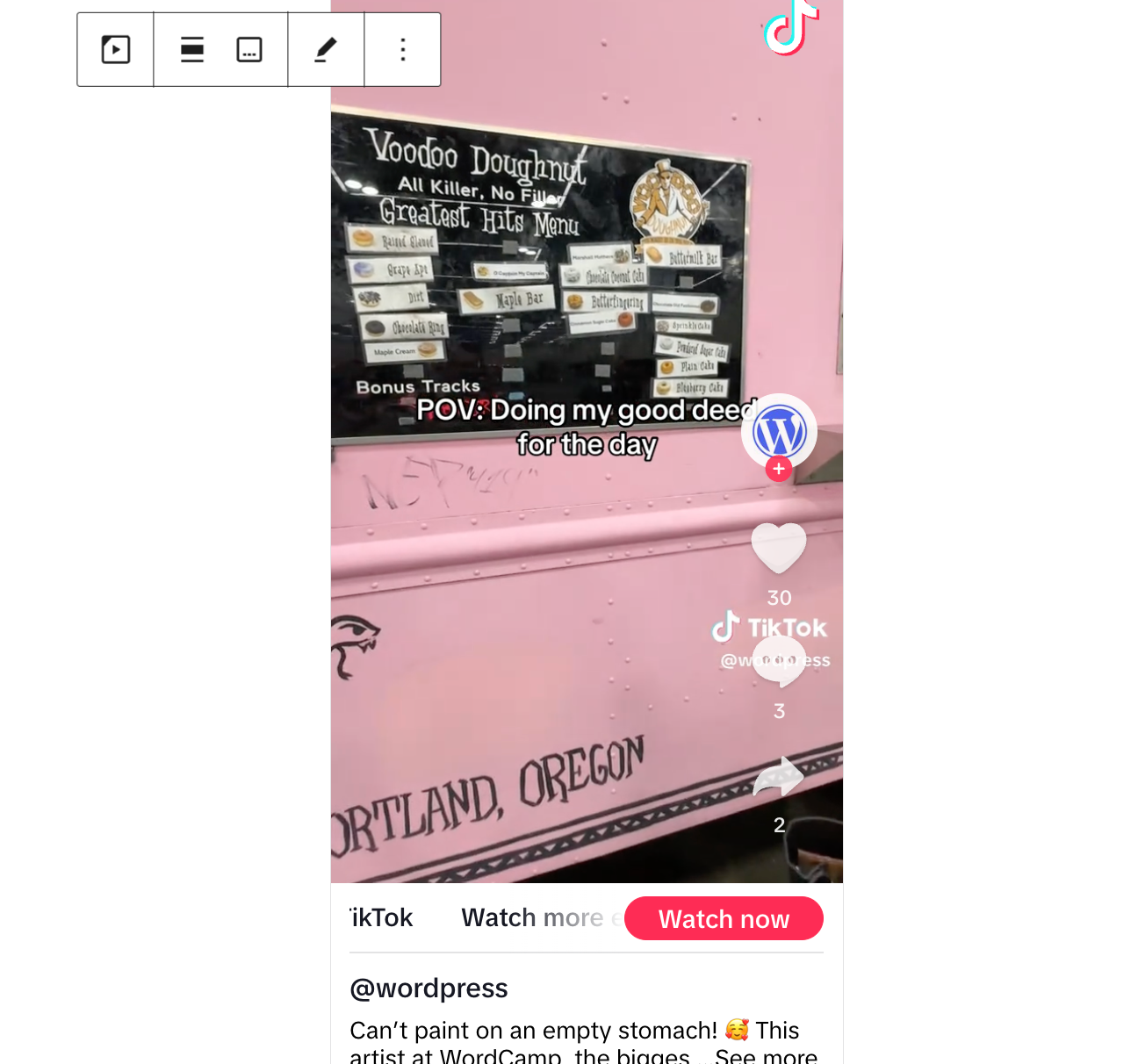
This works in most themes without customization and supports mobile-friendly playback by default.
3. Embedding a TikTok video in the classic editor
If you’re still using the classic editor, follow these steps to embed a TikTok video:
- Copy the full TikTok video URL.
- Open the page where you want to add the video.
- In the Visual tab, paste the URL on its own line.
- Save or update the post.

When you view the page, the TikTok player will appear where the link was placed.
Note: TikTok previews may not appear inside the Classic Editor while editing. Use Preview to test the video layout.
4. Embedding a TikTok video using an embed code
If you prefer to use the embed code TikTok provides, you can place that code into an HTML block or widget. Here’s how:
- On the TikTok video, click the Embed button and copy the code.

- In WordPress, add a Custom HTML block into a page or widget.
- Paste the embed code into the block.
- Update or publish the content.

Why use an embed code:
- You have full control over the layout and can make customizations if you’re familiar with code.
- You can add it anywhere on your site that supports HTML.
- It avoids some auto-formatting that comes with other methods like oEmbed.
5. Embedding a TikTok video using plugins
If you want even more options, there are plugins available to help you out. Here are some top choices:
- EmbedSocial: Create TikTok feeds on your site that automatically update.
- QuadLayers TikTok Feed: Display TikTok feeds based on account or tag and customize the layout to fit your needs.
- Smash Balloon Social Wall: Combine TikTok with other social platforms in a single wall of content.
Benefits of using a plugin:
- Display more complicated configurations, like specific user feeds or hashtags.
- Control settings like the layout, number of videos, and autoplay.
How to customize your TikTok embed
TikTok’s basic embed is already mobile-friendly and styled to match the platform. But you can adjust some things using HTML or plugin settings.
Common tweaks:
- Set max-width on the iframe to fit smaller columns.
- Add padding or margins using block settings or custom CSS.
- Adjust the alignment of the video using block settings.
If using the HTML embed code, wrap it in a container div with styling to control its appearance.
What to do if your embedded TikTok video doesn’t appear
Sometimes, TikTok videos won’t embed the way you expect. Here are some common problems and how to fix them:
The TikTok block says “Preview not available”:
- Double-check that the video is set to public.
- Refresh the page and try again.
- Clear your browser cache.
Publish once. Share everywhere.
Automatically share your website content to your favorite social media platforms, from one place.
Get Jetpack Social for freeThe video doesn’t load on the front end:
- Make sure the link is placed on a new line in the block editor or classic editor.
- Avoid pasting into a block that modifies formatting (like a Quote or Code block).
- Check your theme or plugin settings. Some caching tools may block social embeds.
The layout looks broken on mobile:
- Use a responsive container if you added the HTML manually.
- Test with a default theme like Twenty Twenty-Five to rule out styling conflicts.
A smarter way to host and share videos on WordPress
TikTok videos are fun and engaging, but when you’re working with your own video content, you need more control. You also want fast load times, sharp playback quality, and a clean experience for your visitors. That’s where Jetpack VideoPress comes in.

Jetpack VideoPress is a powerful video hosting solution built specifically for WordPress. It lets you upload, manage, and display your own videos directly from your site, without relying on third-party platforms or cluttered media players.
Here’s what makes Jetpack VideoPress a smart choice:
- Fast, high-quality playback: Videos are delivered using a global content delivery network (CDN), so they play quickly and smoothly anywhere in the world.
- No ads or distractions: Keep your visitors focused on your content. There are no interruptions, branding, or external links.
- Custom player controls: Choose your cover image, enable autoplay, hide player controls, or loop playback to match your content needs.
- Responsive and lightweight design: The player looks great on phones, tablets, and desktops. It adjusts automatically to fit any layout.
- Full WordPress integration: Upload videos using the Media Library and embed them using the VideoPress block, just like adding any other media.
VideoPress is a great option if you want to go beyond embeds and have full control over your video experience, all while keeping your site fast and focused.
To learn more or start using VideoPress, visit the Jetpack VideoPress page.
Frequently asked questions
Why is my TikTok video not showing up in my WordPress post?
The most common reason a video fails to appear is that the link you pasted is incorrect or the video is set to private. WordPress needs the full web address from a browser to work correctly. If you copy a link from the mobile app using the share button, it often includes extra text or shorteners that WordPress does not understand. You should open the video in a web browser like Chrome or Safari and copy the address from the top bar.
Another cause is that the creator of the video may have restricted who can view it. If the video is private or friends-only, it will not display on your site even if you paste the link correctly. Finally, check if you have a security plugin that blocks external content.
Why does my link show as a simple text link instead of a video player?
This issue usually happens because the link was not pasted on its own separate line. The WordPress editor needs the link to sit by itself to recognize it as a video request. If you paste the link in the middle of a sentence or right next to another word, WordPress thinks it is just text. You should press the “Enter” key to create a new empty block, paste the link, and then press “Enter” again.
Also, make sure the link is not already hyperlinked. Sometimes when you copy text, it carries formatting with it. If it still fails, try using the “Embed” block specifically. Search for “TikTok” in the block menu and paste the URL into that specific box to force WordPress to render it correctly.
Can I display my entire TikTok feed instead of just one video?
You cannot display a full feed using the standard WordPress block editor. The default embed block is designed to show only one specific video at a time. If you want to show a gallery of your latest posts that updates automatically, you must install a specific plugin designed for TikTok feeds.
These plugins connect to your account and pull your new videos into a grid layout on your site. This is very useful for keeping your website content fresh without doing extra work. However, you must be careful to choose a plugin that is well-reviewed and updated often. Some feed plugins can be heavy and might slow down your site if they are not built well.
What happens to the embed if the original video is deleted?
If the owner of the TikTok video deletes it, the video will stop working on your website immediately. An embedded video is not a copy that you own. It is just a window that looks at the content on TikTok’s servers. When the original file is gone, your website will show an error message or a blank space where the video used to be. This can make your blog posts look broken or unprofessional.
This is a major risk of relying on third-party content. If the video is critical to your article, you should consider asking the creator for permission to download the video file and host it yourself using a tool like Jetpack VideoPress. This ensures the content stays on your site forever.
Do I need to install a specific plugin to embed TikToks?
You do not need to install any extra plugins if you only want to embed single videos. WordPress has a built-in feature called oEmbed that understands TikTok links. You simply paste the URL into the editor, and WordPress does the rest of the work for you. This is the best method for most users because it keeps your site lightweight and fast.
You only need a plugin if you want advanced features that the standard block does not offer. For example, if you want to show a feed of your latest posts, hide the TikTok logo, or change the color of the player, then you will need a third-party tool. For simple blog posts, the default WordPress feature is the safest and easiest choice.
Why does the TikTok embed look huge on my computer screen?
The standard TikTok embed block tries to fill the entire width of the content area where you place it. On a desktop computer with a wide screen, this can make the vertical video look very large and take up too much vertical space.
You can fix this by putting the video inside a smaller container. In the WordPress block editor, you can use a “Column” block. You can create a layout with three columns and place the TikTok video in the middle column. This will squeeze the video into a smaller space so it looks more like it does on a phone. This makes your post easier to read because users do not have to scroll past a giant video to see the text.
Can I upload a TikTok video file directly to my media library?
You can technically upload a video file to your WordPress media library, but it is usually a bad idea for several reasons. First, video files are very large and will fill up your hosting storage space quickly. Second, playing videos directly from your server requires a lot of bandwidth. If many people watch the video at once, your website might crash or your hosting company might charge you extra money. Third, if you did not create the video yourself, downloading and re-uploading it is likely a violation of copyright laws.
It is much safer and better for performance to use the official embed feature. If you own the video and must upload it, use a dedicated video hosting plugin like Jetpack VideoPress instead of your basic web host.

Publish once. Share everywhere.
Automatically share your website content to your favorite social media platforms, from one place.
Get Jetpack Social for free Jetpack